
Login with Google
To enable Login with Google, you need a Google Client ID and Client Secret.
These credentials are generated from the Google Developer Console.
Create Google App
Follow the steps below to create your Google OAuth application.
1. Open Google Developers Console
If you don’t already have a Google developer project, create one here:
https://console.developers.google.com/
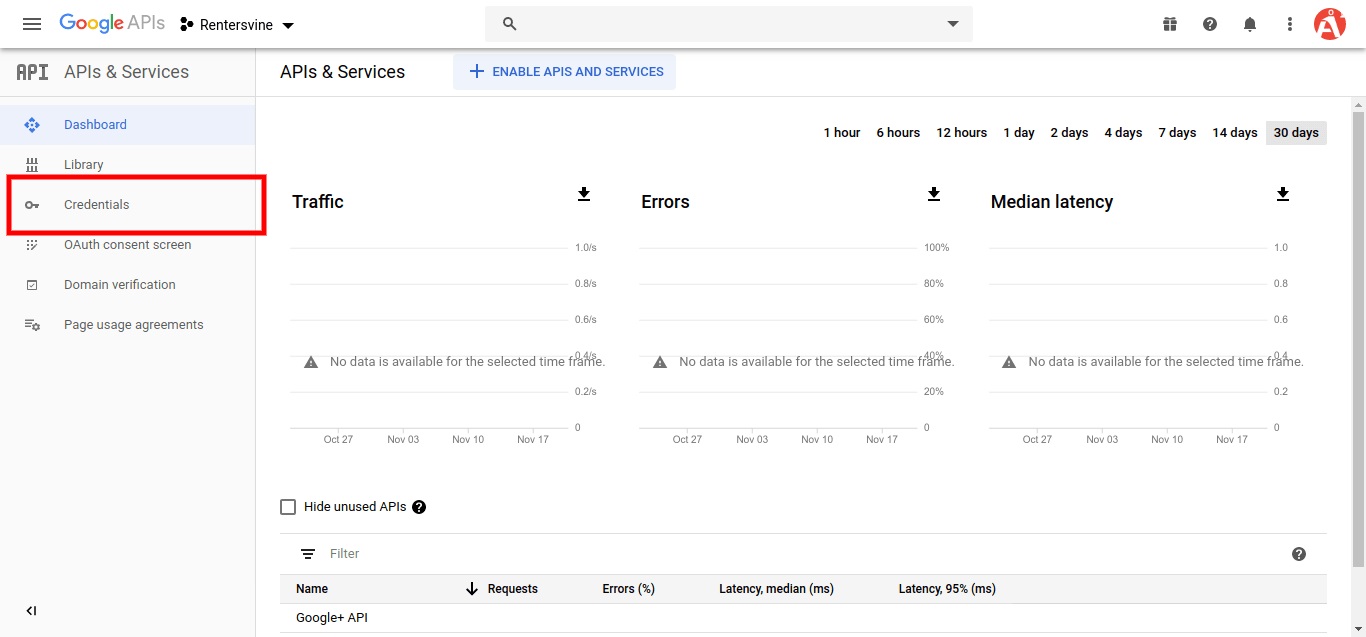
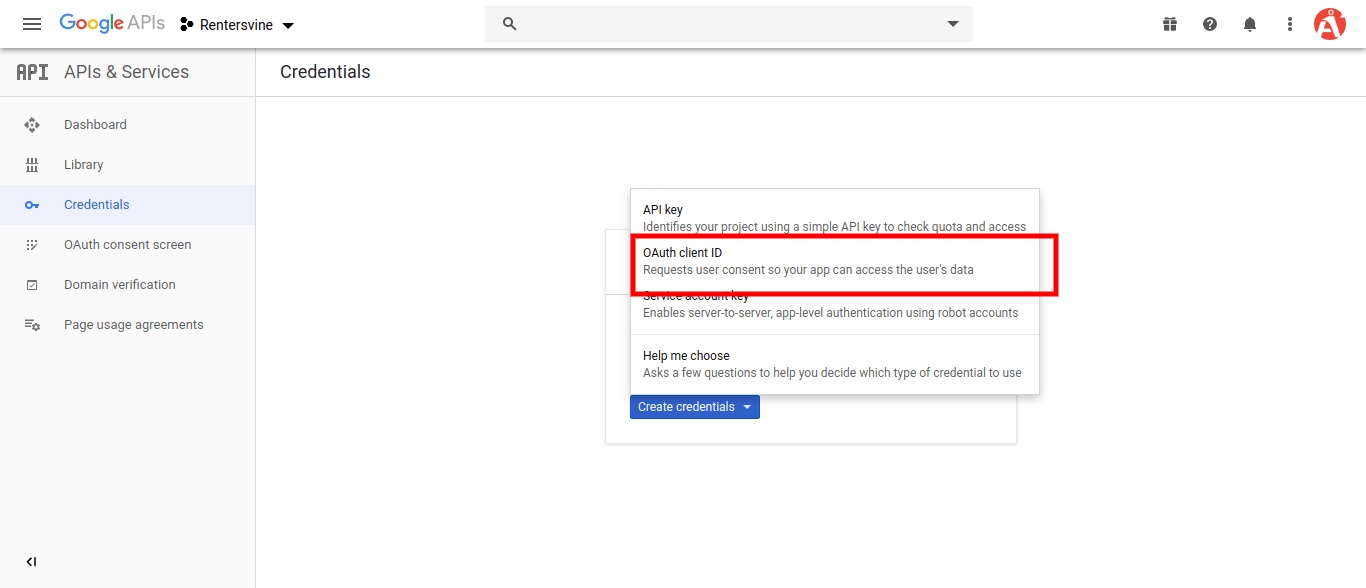
2. Create OAuth Credentials
- Click Credentials
- Click Create Credentials
- Select OAuth Client ID
3. Configure OAuth Consent Screen
Before creating OAuth Client ID, you must configure the consent screen.
Go to OAuth Consent Screen
Select External
Click Create
Enter your App Name
Upload your App Logo
Add:
- Domain
- Privacy Policy URL
- Terms of Service URL
Save the configuration
Your consent screen is now ready.
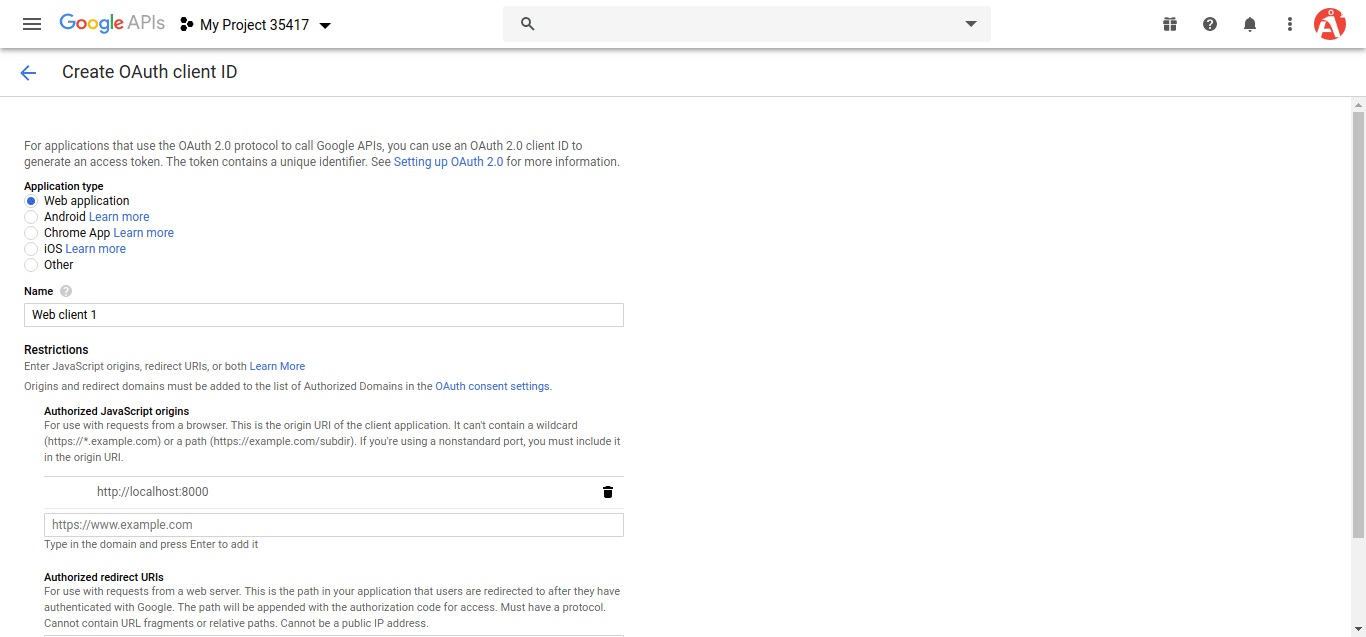
4. Create OAuth Client ID
Now create the OAuth Client ID:
Set Application Type → Web Application
Enter a Name
Add your Server URL in:
Authorized JavaScript Origins Example:
https://www.yourdomain.comAdd your Admin Panel Redirect URL in:
Authorized Redirect URIs Example:
https://admin.yourdomain.com/api/v1/user/social-login/callback/googleClick Create
5. Copy Credentials
After creation, copy:
- Client ID
- Client Secret
Save them for later use.
Setting the Google Configuration
Now configure Google login inside your admin panel.
- Log in to your Admin Panel
- Go to:
Settings → Social LoginEnter:
- Google Client ID
- Google Client Secret
Save the settings.
Your Google Login integration is now complete 🎉